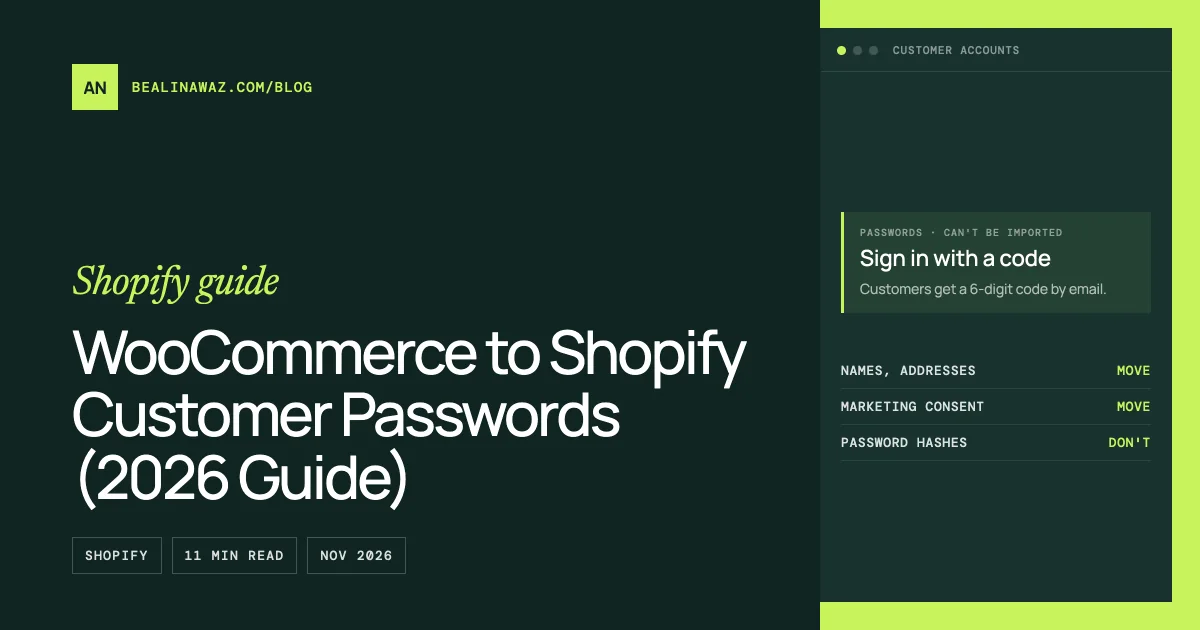
WooCommerce to Shopify customer passwords can't be moved: WordPress keeps each password only as a one-way hash, and Shopify's own help center says you can't migrate customer passwords from another online store using a CSV. You import the customers without passwords, and on Shopify's current customer accounts they sign in with a 6-digit code sent to their email, so nobody has to set a new password at all.
That second part is the good news most migration guides miss. The old advice, "send every customer an invite to create a new password", only applies to stores still on legacy customer accounts, and Shopify stopped offering that version to new stores in February 2026. Below is why the hashes can't travel, how to tell which account version you have, the import steps I follow, and the mistakes that cause login complaints on launch day.
Short answer
- Passwords: can't be imported by CSV. Shopify's customer CSV has no password column, and the help center says so directly.
- Customer records: names, emails, phone numbers, default addresses, tags, notes, tax status and marketing consent all import by CSV or app.
- Current customer accounts: an imported customer already has an account. They enter their email, get a one-time 6-digit code, and they're in.
- Legacy customer accounts: deprecated. Customers have to be invited to create a new password before they can sign in.
- Shopify Plus single sign-on: Multipass is closed to new stores. Plus stores can connect their own OpenID Connect identity provider instead.
Why WooCommerce passwords can't move to Shopify
WooCommerce doesn't store customer logins itself. Customers are WordPress users, and WordPress saves a hash of each password in the user_pass column of the users table, never the password itself. A hash works one way. WordPress can check whether a typed password produces the same hash, but nobody can turn the hash back into the password.
There are two kinds of hash in a typical WooCommerce database today:
Prefix in user_pass |
Where it comes from |
|---|---|
$P$ |
phpass, the WordPress default before version 6.8 |
$wp$2y$ |
bcrypt with a SHA-384 pre-hash, the default since WordPress 6.8 (April 15, 2025) |
WordPress 6.8 didn't reset anyone's password. Each old hash is rehashed with bcrypt the next time that customer logs in or changes their password. So a store that has been running for years usually has a mix: recent shoppers on $wp$2y$, and customers who haven't logged in since the site updated to 6.8 still on $P$. You may also see plain $2y$ hashes if a security plugin used bcrypt before core did.
Shopify's own tools can't accept any of these. Its customer import doesn't take a hash, and there's no setting that tells Shopify to check a password the WordPress way. Some paid migration services list a "customer passwords" add-on for WooCommerce to Shopify, but their own help pages disagree on whether it works for Shopify, and on Shopify's current customer accounts a password isn't used to sign in at all.
If someone offers to "move your passwords", ask exactly how it works, which customer accounts version it needs, and what happens when that version is retired. Get the answer in writing before you pay for it.
First, check which customer accounts version you have
This decides what your customers will see, so check it before you write a single email.
In your Shopify admin, go to Settings > Customer accounts. If you see a banner that says you're using legacy customer accounts, you're on the old version. If not, you're on the current one.
Current customer accounts (the only option for new stores since February 2026):
- If a customer profile exists in your admin, that person already has an account. Nothing to activate.
- They sign in with their email address and a one-time 6-digit verification code. Shopify's help center says "A password isn't required to sign in."
- You can also offer Sign in with Shop (if Shop Pay is active) and Google or Facebook sign-in.
- Sign-in sessions last up to 365 days.
Legacy customer accounts:
- Shopify's developer changelog marks them deprecated as of February 2026. They're no longer available to new stores or to stores that weren't already using them, and Shopify has stopped feature updates and technical support for them.
- Shopify said a final sunset date would be announced later in 2026. It hadn't published one when I checked on November 1, 2026.
- Imported customers can't sign in until they've been invited and have created a new password.
If your new Shopify store is fresh, you're almost certainly on current customer accounts already. If you're moving into an older Shopify store that still runs legacy accounts, upgrade before launch rather than after. Shopify's upgrade guide walks through it, and you can revert within 30 days.
How to move WooCommerce customers to Shopify, step by step
1. Export customers from WooCommerce
In the WordPress admin, go to Analytics > Customers and click Download. The report includes registered customers and guests, and guest orders that share an email address are joined into one customer record. Large reports are prepared in the background and emailed to you as a download link.
Decide now whether guests should become Shopify customers. On current customer accounts, every profile you import can sign in, so importing guests gives them an account they never made. On the migrations I run, I import guests who have orders, because their order history needs a customer to attach to, and I keep that choice in the client's notes.
2. Clean the list
Shopify creates one customer per email address. If the file contains duplicate emails or phone numbers, Shopify skips them, and only the last row with that email or phone is imported. Merge duplicates yourself so you choose which address and name win.
While you're in the spreadsheet, fix obviously broken emails and remove test accounts and staff logins. Fewer bad rows means fewer bounced sign-in codes later.
3. Build the Shopify customer CSV
Shopify's template uses these columns: First Name, Last Name, Email, Accepts Email Marketing, Default Address Company, Default Address Address1, Default Address Address2, Default Address City, Default Address Province Code, Default Address Country Code, Default Address Zip, Default Address Phone, Phone, Accepts SMS Marketing, Accepts WhatsApp Marketing, Total Spent, Total Orders, Note, Tax Exempt and Tags.
A few rules that trip people up:
- The Email column must be present, though a cell can be blank.
- Country is the two-letter ISO code (US, GB, CA) and province is the ISO state or province code.
- Total Spent and Total Orders are ignored on import. Those numbers rebuild from imported orders.
- Each file must be 15 MB or smaller. Split a large list into several files.
- Add a tag such as
woo-importto every row. You'll use it to build a segment for your launch email.
My free Shopify CSV template and checker has the customer layout ready and flags rows Shopify would reject. Products need their own file. Import products first, then customers, then orders, which is the order Shopify recommends. For the catalog, the WooCommerce to Shopify CSV converter turns a WooCommerce product export into Shopify's format.
4. Carry marketing consent over honestly
This is the step where a migration can wreck your sender reputation. Shopify warns that importing people as subscribers after they opted out causes spam complaints and bounces. The three consent columns accept only yes or no, and each one is separate.
Shopify's guidance is clear: enter no for anyone who unsubscribed, never opted in, marked your emails as spam, or whose address bounced. An email opt-out doesn't change SMS or WhatsApp consent, so set each column from that channel's own history. Don't mark everyone yes because they once bought something.
On most WooCommerce stores I see, consent isn't in WooCommerce at all. It sits in the email plugin or the email platform, so export the subscriber and unsubscribe lists from there and match them to the customer file by email. Shopify also suggests recording engagement with tags, such as "very engaged" for contacts active in the last 3 months, because opens and clicks can't be imported.
5. Import into a development store first
In the Shopify admin, go to Customers, click Import, add the file, and decide whether to tick Overwrite existing customers that have the same email or phone number. Overwriting replaces all of that customer's data, tags included, so leave it off unless you mean it.
Then open a dozen profiles and compare them with WooCommerce: name, address, phone, tags and the consent fields. My migration app imports customers and their orders without sending any emails, which is how I can run test imports as often as I need before launch.
6. Set up and test sign-in
Before launch, check three things on current customer accounts:
- Sender email. Customers get their sign-in code by email, and Shopify's upgrade guide has you check that the store's sender email is up to date. Use an address on your own domain that customers recognize.
- Branding. Add your logo and colors to the sign-in page in the checkout and accounts editor, so it looks like your store and not a stranger's.
- A real test. Import yourself as a customer, sign out, sign in with the emailed code, and confirm your past test orders show up.
7. Tell customers how to sign in
Send one short service email to account holders on or just before launch day. Say the store has moved, that their orders and addresses came with them, and that next time they sign in they'll get a code by email instead of typing a password. Don't put a sign-in link that looks like a password reset in it. Phishing emails look exactly like that, and customers have been trained to ignore them.
I keep this message free of offers, send it from the store's usual domain, and send it only to people who had accounts. Add the same explanation to your contact page and FAQ for anyone who misses the email.
If you're on legacy customer accounts for now, this is also when each customer needs an account invite so they can create a new password. Shopify's import help says that after importing you need to invite customers to create new passwords so they can register their accounts.
8. Shopify Plus and single sign-on
Some stores want logins shared with another system, such as a membership site. On Shopify Plus, you can connect your own OpenID Connect identity provider, which replaces Shopify's default sign-in. Multipass, the older Plus-only token login, is no longer available to new stores. Stores that already used it keep it working after they upgrade from legacy accounts.
For headless builds, Shopify recommends the Customer Account API for customer data and signed-in actions. Shopify has said the Storefront API customer mutations, such as customerActivate (where the customer sets a password), will be deprecated, and its changelog recommends switching as soon as possible.
Common mistakes
- Promising customers their old password will work. It won't, on any route. Say so plainly in the launch email.
- Writing a "reset your password" email for a store on current accounts. There's no password to reset. Customers get confused and contact support.
- Importing everyone as subscribed. Consent has to come from each person's real history, channel by channel.
- Leaving duplicates for Shopify to sort out. Shopify keeps only the last duplicate row, which may be the oldest address.
- Importing customers after orders. Orders need their customer to exist. Products, then customers, then orders.
- Testing sign-in only with a staff email. Test with an imported customer record, from a normal inbox, on a phone.
- Sending the launch email from a new domain. Use the domain customers already know.
Frequently asked questions
Can I import WooCommerce password hashes into Shopify?
No. Shopify's customer import has no password or hash field, and Shopify's help center says customer passwords can't be migrated from another online store using a CSV. On current customer accounts, customers don't use a password anyway.
Do my customers have to create a new account on Shopify?
Not on current customer accounts. Every imported profile already counts as an account, and the customer signs in with their email and a one-time code. On legacy accounts, each customer has to accept an invite and set a new password.
Will customers see their WooCommerce order history after the move?
Yes, if the orders are imported and linked to the customer. Shopify's customer CSV can't carry orders, so you need an app or the API for order history.
Are legacy customer accounts going away?
Shopify deprecated them in February 2026 and stopped offering them to new stores. It said a final sunset date would be announced later in 2026. Upgrading before your migration launch avoids a second change for your customers.
Will Shopify email my customers when I import them?
Shopify's import help doesn't describe any automatic email on import. On legacy accounts you send invites yourself, and on current accounts customers only get a code when they choose to sign in.
Can customers still use a password on Shopify?
Not with Shopify's own sign-in on current customer accounts. Customers use an emailed one-time code, and you can add Sign in with Shop, Google or Facebook. On Shopify Plus, connecting your own identity provider replaces Shopify's sign-in, so the login method is then up to that provider.
When to get help
Customer accounts are one of the parts of a migration your buyers notice first. If your store has a few hundred customers and one email platform, the steps above are a solid weekend job. With guest orders to merge, consent spread across tools, a membership or wholesale login, or a store that has to launch without a support spike, it's worth having someone do it who has run the process before.
My WooCommerce to Shopify migration service covers customers, orders, products, redirects and the launch email plan for a fixed quote after a free audit. For the full picture, read the WooCommerce to Shopify migration guide, and see the cost to migrate WooCommerce to Shopify before you budget.